

How to store the Search Index in Custom Objects
When using Custom Objects and the Search Index feature, an additional field is required in order to store the Search Index in the custom Object record itself. This tutorial will show you how to create that field.
By default, the search index is stored in a dedicated custom object called "Plauti Deduplicate Index".
Each record that is indexed takes 2kb of storage space.
Another option is to store the index in the Object itself. This will store the search index in a field in your records, which takes no additional storage space.
Do note that as a result of updating the records with the search index, the Last Modified date of all records will change.
To store the Search Index for a Custom Object in the Object record itself:
1 Create the Search Index field in your Custom Object
Go to Salesforce Setup.
Open the Object Manager.
Find and select the Custom Object to which you want to add the Search Index field.
Click on Fields & Relationships.
Click New to create a new field.
In Step 1, choose Text Area (Long) and then click Next.

In Step 2, fill only the following fields and then click Next:
Field Label: Deduplicate Index
Field Name: dc3IndexDepending on your Salesforce edition (Professional and up), you will now get a screen to establish field-level security. Decide who may see the Duplicate Check Index field and click Next.
Depending on your Salesforce edition (Professional and up), you will now get a screen where you are able to add the Duplicate Check Index field to the page layout. Add the field to the pages you would like. Click Save.
Click here to watch a short video showing all the steps.
The Search Index field has been created for your Custom Object. Now continue with the tutorial to learn how to enable and create a Search Index.
2 Enable and create the Search Index for your Custom Object
In the steps below, the Opportunity Object is used as an example; change to your custom object where needed.
Go to Deduplicate Setup.
On the left-hand side, go to Object Configuration, and configure your Custom Object.
Go to the Settings tab.
In the General section, make sure the Search Index setting is enabled.
Scroll down to the Index section.
At Index Location choose ... Object -- Deduplicate Index or the equal for your custom object.

Go to the Index Batch tab.
Click Action and select Create Search Index.
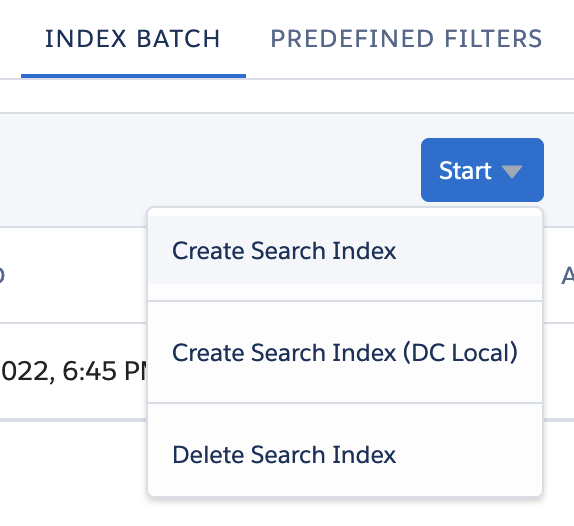
Once the search index is created, you can start searching for duplicates within your Custom Object. The time it takes to create the search index depends on your Object record count. The Search Index will update automatically for all new and modified records.