

How to change the default subject line and message in Share Results
The Deduplicate Share Results feature comes with a default subject line and message. Read on to find out how to set your own default subject line and default message.
You can share results from the Deduplicate Job Results page and from a Merge page.
Step 1 Enable Translation Workbench
Navigate to Salesforce Setup
Type 'Translate' in the quick find box
Click on 'Translate'
Click on 'Enable'
Step 2 Change default subject line for Share Deduplicate Job Results
Type 'Custom Labels' in the quick find box
Click on 'Custom Labels'
Go to the letter 'S' and find 'Share Subject Job'
Click on 'Share Subject Job' (do not click on the edit button)
Click on 'New Local Translations / Overrides' button
Choose the Language
You can set per language your default subject line.
In the Translation Text box, you can write your default subject line
You can use the tags {{jobName}} and {{userName}} in your subject line. The 'jobName' tag refers to the Deduplicate Job Name, and the 'userName' tag refers to the user who shares the Deduplicate Job results.
Click 'Save'
Step 3 Change default message for Share Deduplicate Job Results
Type 'Custom Labels' in the quick find box
Click on 'Custom Labels'
Go to the letter 'S' and find 'Share Body Job'
Click on 'Share Body Job' (do not click on the edit button)
Click on 'New Local Translations / Overrides' button
Choose the Language
You can set per language your default message.
In the Translation Text box, you can write your default message
To use a new line in your message, you need to type 'n', otherwise, the Merge page is not usable anymore and you will get the following error message on the Deduplicate Job Page:
Delete {{$root.meta.checkCount}} selected job(s)
You can use the tags {{jobName}} and {{userName}} in your message. The 'jobName' tag refers to the Deduplicate Job Name, and the 'userName' tag refers to the user who shares the Deduplicate Job results.See below an example of how to use a new line in your message:
.png)
See below a bad example of how not to use a new line in your message:
.png)
Click 'Save'
Step 4 Change default subject line for Share Merge page
Type 'Custom Labels' in the quick find box
Click on 'Custom Labels'
Go to the letter 'S' and find 'Share Subject Merge'
Click on 'Share Subject Merge' (do not click on the edit button)
Click on 'New Local Translations / Overrides' button
Choose the Language
You can set per language your default subject line.
In the Translation Text box, you can write your default subject line
You can use the tag {{userName}} in your subject line. The 'userName' tag refers to the user who shares the Merge page.
Click 'Save'
Step 5 Change default message for Share Merge page
Type 'Custom Labels' in the quick find box
Click on 'Custom Labels'
Go to the letter 'S' and find 'Share Body Merge'
Click on 'Share Body Merge' (do not click on the edit button)
Click on 'New Local Translations / Overrides' button
Choose the Language
You can set per language your default message.
In the Translation Text box, you can write your default message
To use a new line in your message, you need to type 'n', otherwise, the Merge page is not usable anymore and you will get the following error message on the Deduplicate Job Page:
Delete {{$root.meta.checkCount}} selected job(s)
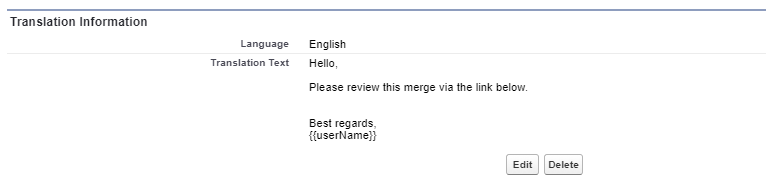
You can use the tag {{userName}} in your message. The 'userName' tag refers to the user who shares the Merge page.See below an example of how to use a new line in your message:

See below a bad example of how not to use a new line in your message:
Click 'Save'.