

How to find duplicate records based on email address field only
Since an email address is unique, it is a valuable field when checking for duplicate records. Leads, Accounts or Contacts can have different names, but can be linked together based on the email address. This article will show you how to run a Deduplicate Job based on email address only.
1 Create a Scenario for matching by Email only
Go to tab Deduplicate Setup.
At left, go to Object Configuration, and configure the Object you want to find duplicates for.
Open the object's Scenarios tab (the object probably opened on that tab).
Click Add New Scenario
 .
.Enter a name for the new Scenario, e.g. "Email Only", and click Add
 .
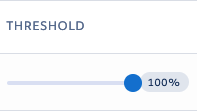
.Set the Threshold number at 100%, because we are looking for exact matches on Email Addresses. Only records that will match 100%, based on email address, will be shown in the duplicate results list.
Leave the Empty Fields value at "Disregard". Since we're using a scenario with only one field, this setting is irrelevant. Learn more about empty fields.
At Apply To, select "Deduplicate Job". This makes the scenario available to be used in a Deduplicate Job. You can add more options here to use the scenario in other places as well.
Click Add New Field
 .
.As Field, select the "Email" field.
Leave Synonym Matching and Frequent Words at "None", since we are looking for exact matches on Email Address.
At Matching Method, select "Exact".
:::info
If you want to find duplicate records with almost identical email addresses, you can also decide to use "Fuzzy" matching here. This way you can find duplicates with minor spelling mistakes in the email address.
Matching method "Email Address" is another option. It compares email addresses based on similarity rather than on exact match, matching the addressee part differently than the domain name part.
However, in both cases the Threshold should be set to a bit under 100%, e.g. 95% or 98%, since these matching methods will also find email addresses that are almost but not exactly the same.
Read more about Matching Methods.
:::
This is what your scenario should look like:
2 Start a Deduplicate Job using the scenario
Go to tab Deduplicate Job.
At top right, click New Job
 .
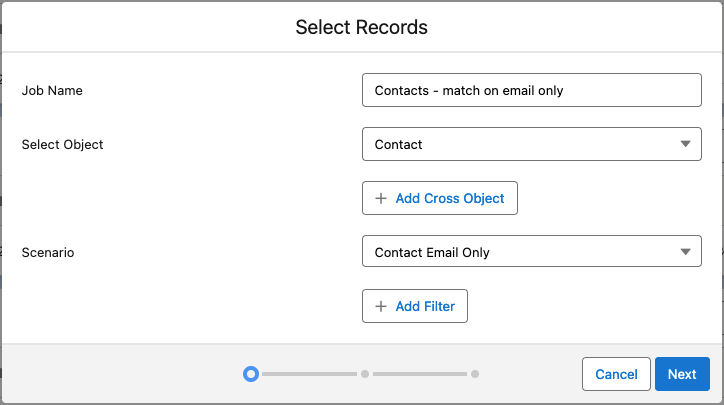
.Enter a job name, and select the Object you just created the "Email Only" scenario for.
At Scenario, pick the "Email Only" scenario you just created. Make sure no other scenarios are selected.
Add a filter to narrow down the search (optional).
Click Next.
Add a Schedule or Auto Merge if desired. Click Next.
Select where to process the Deduplicate Job and click Start.
Read more about these steps in Deduplicate Job - Find Duplicates in Batch.
The job will now start and appear in the Deduplicate Job Overview. Its results, on the Deduplicate Job Results Overview, will show only those records with identical email addresses.
Now that you found your duplicate records, you are ready to merge them. Learn more about merging duplicate records.