

Schedule a Deduplicate Job
Schedule Deduplicate Jobs for finding duplicate records in Salesforce repeatedly and automatically, at a frequency that you decide.
Creating a Scheduled Job
Create a Scheduled Job the same way as a single job, by clicking New Job on one of the Deduplicate Job Overview pages. At step 2. Job Options, click Add Schedule.
For detailed information on creating Deduplicate Jobs, see Deduplicate Job - Find Duplicates in Batch.
Go to the Deduplicate Job tab.
click the Down arrow
 next to the Job Overview header to switch to the Scheduled Job Overview.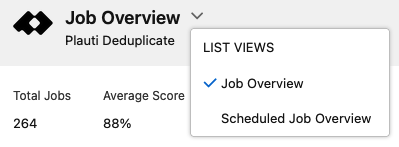
At top right, click New Job
 .
.In the New Job modal, at step 1. Select Records, enter a Job Name, select an Object and add a Scenario.
If needed, add a Cross Object or a Filter.
Click Next.
At step 2. Job Options, click Add Schedule.
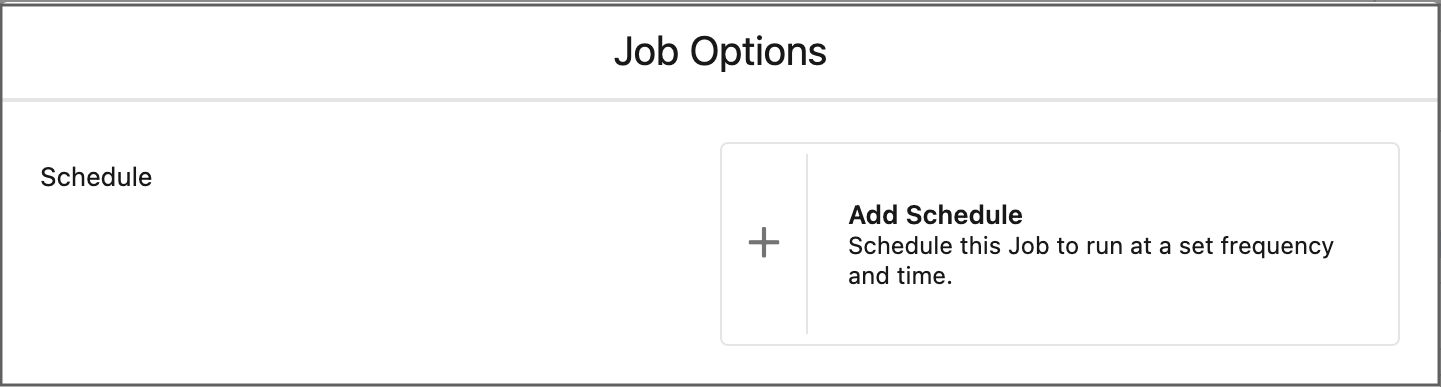
Select a Frequency: Daily, Weekly, Monthly, or Custom.
- Daily: select a preferred start time.
- Weekly: select one or more weekdays, and a preferred start time.
- Monthly: select a set day (e.g. the 2nd of each month) or a relative day (e.g. the last day or the last weekday of each month), and a preferred start time.
- Custom: enter a Cron String. See below for an explanation.
 If you've changed your mind and you do not want to use a schedule after all, click Remove Schedule
  .
.
Optional: Add Auto Merge or Auto Convert, and/or AI Match Recommendation.
Click Next.
Select a processing option: Salesforce, Plauti Desktop/Server, or Plauti Cloud. Note that costs apply for Plauti Cloud jobs.
Scheduled Jobs can only be processed via the Plauti Desktop app if you are also using Plauti Server. But as jobs can only run on Plauti Desktop when the app is open, it is recommended to use either Plauti Cloud, Plauti Server or Salesforce for scheduled jobs.
Click Schedule.
Plauti Cloud and Plauti Desktop jobs still need to be started!
As with single Deduplicate Jobs, Scheduled Jobs processed within Salesforce will start automatically, but jobs processed via Plauti Cloud or Plauti Desktop app (only available for scheduled jobs if you also have Plauti Server) need to be started manually first, unless Auto Run is activated. For Plauti Server you most likely have Auto Run enabled already.
Each time when a scheduled job should run according to its schedule, a new Deduplicate job is created that needs to be started.
A Deduplicate Job or Auto Merge/Convert job that is still waiting to be started will show status "Holding" in the Deduplicate Job Overview.
- Open Plauti Desktop or log in to your Plauti Cloud team, find the new job in the job list, and start the job.
For Plauti Desktop, starting Scheduled Jobs is only available if you have Plauti Server as well. - if you added Auto Merge or Auto Convert, the Auto Merge/Convert job that follows after the Deduplicate job is finished needs to be started manually as well, because the user permissions for merging need to be checked first.
- If you have Auto Run enabled in Plauti Cloud, Desktop or Server, the new jobs will be started automatically.
- Because one of the main purposes of Plauti Server is running continuously, you will most likely already have Auto Run enabled there, so jobs (single or scheduled) are always processed automatically without the need to start them first. You can check this in the Plauti Server app, at Plauti Deduplicate > Settings.
You are returned to the Scheduled Job Overview page or Deduplicate Job Overview page, depending on where you started.
If you were returned to the Deduplicate Job Overview page, at top left, click the Down arrow
next to the Job Overview header to switch to the Scheduled Job Overview.In the overview, find the scheduled job you just created, to check its details and apply job options if needed. See Scheduled Job Overview.
Make sure the job's status says Active
 ** if you want it to start at the first upcoming moment according to its schedule.**
Each time when a scheduled job should run according to its schedule, a new Deduplicate job is created and listed on the Deduplicate Job Overview page. If it was set to be processed in Salesforce or Plauti Server, it will run automatically. Jobs for Plauti Cloud need to be started there first, or are started automatically if Auto Run is enabled.
On the Deduplicate Job Overview page you will also find all finished runs of a scheduled job, and you can process their results there.
Notifications for finished job runs
You can set up an email notification to be sent each time a scheduled job run has finished. Read more here.
Preferred and Actual Start Time
Salesforce schedules the Deduplicate Job for execution at the specified preferred start time. However, actual execution may be delayed depending on service availability.
Predefined Filters use latest setting
If you have added a predefined filter in the Filter option of a scheduled job, and at some point in the future that predefined filter is edited, the edited version of the filter will be used from then on in all future runs of the scheduled job.
Scheduled Jobs can only be processed via Plauti Desktop if you also have Plauti Server; in general, it is advised to use Plauti Server or Plauti Cloud to process Scheduled Jobs outside Salesforce.
Custom Cron jobs
When selecting a frequency for your scheduled job, one option is "Custom". If the Daily, Weekly or Monthly options aren't specific enough, you can enter a Cron String here to set a more specific running frequency.
Most Salesforce-supported cron values can be used, except for Salesforce's optional year value in a 7th parameter.
A Cron expression consists of 6 date/time parameters, separated by white-spaces:
Enter a parameter for each date/time option to set a specific schedule. Once the job is scheduled, the job information in the Scheduled Job Overview will show the schedule written out in words.


Notes for using the Salesforce-supported cron parameters
- Jobs cannot run more often than once an hour, so
\*cannot be used for seconds and minutes, only numbers0up to59. - Hours use 24-hour notation, e.g. 9PM =
21. - Dayofweek starts counting at Sunday, e.g. Sunday to Tuesday =
1-3.SUN-TUEcan also be used here. - Dayofmonth and dayofweek cannot both have a specified value. Enter a value or
\*for one, and?for the other.
The Cron parameters
| Parameter | Allowed values | Allowed special characters |
|---|---|---|
| Seconds | 0-59 | none |
| Minutes | 0-59 | none |
| Hours | 0-23 | , - / |
| Dayofmonth | 1-31 | , - / ? L W |
| Month | 1-12 or JAN-DEC | , - / |
| Dayofweek | 1-7 or SUN-SAT | , - / ? L # |
| Special character | Description | |
| , | To delimit multiple values. For example 1, 5, 8 | |
| To specify all values. For example, for the Month parameter means the job will run every month. | ||
| / | To specify increments. The number before the slash specifies when the interval will begin, and the number after the slash is the interval amount. E.g. 1/5 for Dayofmonth means the job will run every fifth day of the month, starting on the first day of the month. | |
| W | To specify the nearest weekday (Monday or Friday) of the given day. E.g. if you enter 20W, and the 20th is a Saturday, the job will run on the 19th (Friday). However, if you enter 1W, and the 1st is a Saturday, the job does not run in the previous month, but on the following Monday (the 3rd). :::info Use LW to specify the last weekday of the month. ::: |
Cron parameter information sourced from https://developer.salesforce.com/docs/atlas.en-us.apexcode.meta/apexcode/apexscheduler.htm and adapted for use in Plauti Deduplicate
Cron String examples
Note that some of these examples can also be set using a Weekly or Monthly frequency instead of Custom.
Run the DC job at...
| 20 minutes past the hour, every hour | 0 20 ? |
| 7 PM on the last day of every month (can also be set with a Monthly schedule) | 0 0 19 L ? |
| 9 AM on the last day of December | 0 0 9 31 12 ? |
| The beginning of every hour on the last weekday of every month | 0 0 LW ? |
| 5 PM every Friday (can also be set with a Weekly schedule) | 0 0 17 ? 6 |
| Each hour from 8AM to 2PM on Monday | 0 0 8-14 ? 2 |
| Every 30 minutes between 8AM and 10AM daily. | 0 0/30 8-10 ? |