

Auto Convert
The Auto Convert feature is available in the Premium and PDM Editions.
The Auto Convert feature lets you automatically convert duplicate records across objects that scored above a threshold level of your choice.
Add Auto Convert to a Deduplicate Cross Object job to run automatically, or run it manually from the job results after reviewing the results first.
Using Auto Convert in a (Scheduled) Job
You can run Auto Convert automatically right after running a Deduplicate Cross Object job, by including it in the job configuration. After configuring in the job configuration, the Auto Convert will run as part of the job process without any user intervention.
However, this is only recommended if you are absolutely sure of the job results you are going to get. Converting records cannot be undone!
Prerequisites
- Cross Object has been enabled and configured for the Objects that you want to run a Deduplicate Cross Object job for.
Add Auto Convert to the job process
To apply Auto Convert right after running a Deduplicate Cross Object Job, add it during the Deduplicate Job configuration.
To apply Auto Convert right after running each run of a Scheduled Cross Object Job, add it during the Scheduled Job configuration.
Using Auto Convert for Job Results
Alternatively, run Auto Convert afterwards on the job results, after you reviewed the job results first, and decided which of them you want to discard from the conversion process.
Prerequisites
- You have enabled the Show Quick/Auto Merge Button setting in the General Settings. This setting applies to the Auto Convert button as well.
- You ran a Deduplicate Cross Object job with results.
Apply Auto Convert to job results
To automatically convert Deduplicate Job results, after a job ran and you reviewed its results:
Go to tab Deduplicate Job and find the job where you want to auto convert records.
At the job row, at right, click Job Options
 .
.In the selectlist, click Start Auto Convert
 .
.The Auto Convert modal opens. "Job Name" states which job will be auto-converted.
Select a Status after conversion for the converted records.
Learn how to create your own convert status and how they work in this Salesforce Help Article.
Select an Auto Convert Threshold.
All duplicate pairs in the job that have a matching percentage equal or higher than the threshold will be automatically converted.
Add an Object filter (optional) to only convert a subset of records from the job, or
Add a Duplicate Group filter (optional) to only merge certain duplicate groups (e.g. groups with only two records).
Read more about Auto Convert Filters.Click Next.
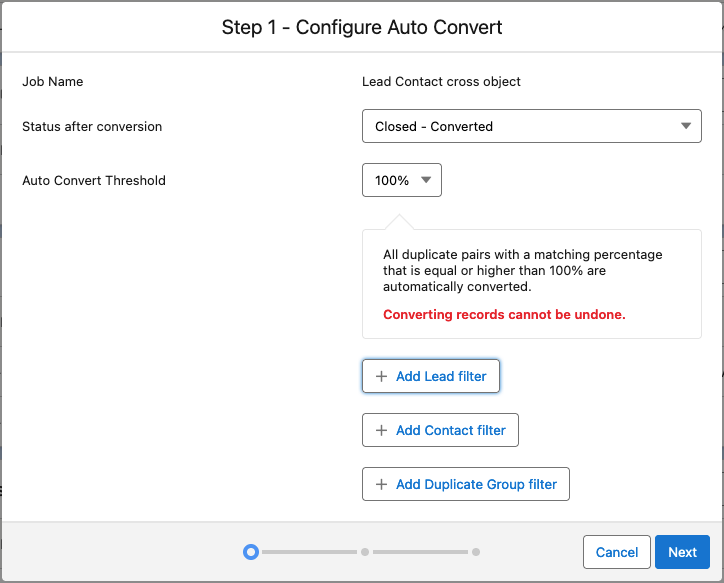
Threshold?
When running a Deduplicate Job, pairs of records will get a matching score based on the applied Scenario. The more similar two records are, the higher the matching score. Records with a matching score that is equal to or higher than the set Threshold will be auto-converted.
Do not set the threshold too low: converting records cannot be undone!
As a best practice, you could decide to only automatically convert records at a threshold of 100%, i.e. only those records that have identical scenario-fields. Then process the lower scored duplicate records manually.
In the next step, decide where to process the Auto Convert Job. Currently only the Salesforce Platform is available; in the future you can also choose to run Auto Convert jobs on Plauti Desktop, Plauti Server or Plauti Cloud.
Click Next.
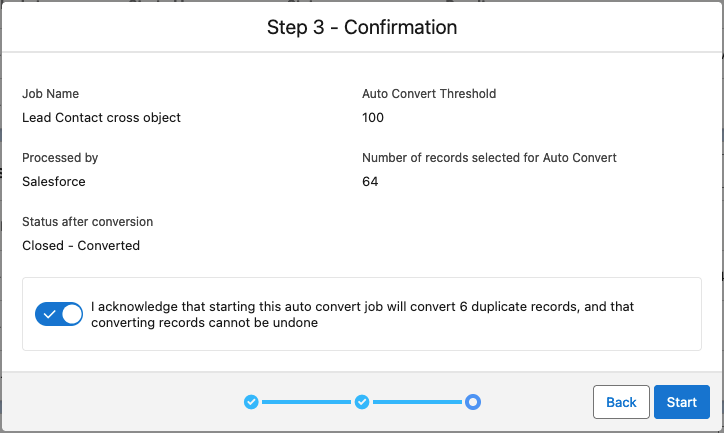
In the Confirmation window, review the Auto Convert job settings. Click Back to make changes if needed.
Toggle Acknowledge to confirm that the job will convert the indicated number of records, and that converting records cannot be undone.
Click Start.
You are returned to the Deduplicate Job overview page. The Auto Convert job you just created appears as a subjob for the Deduplicate Job.
At right, click Convert Log  to view the convert log.

A running Auto Convert job will have status "Processing" on the Deduplicate Job overview page. Once it's done, it will show status "Completed".
Auto Convert, Quick Convert, or Manual Convert?
 |
Auto Convert is used for automatically converting a large number of duplicate job results across objects. You set a threshold and filters before applying. Field values in the Contact or Account record take precedence over the Lead record value; unless a field is empty, then the Lead record value is kept. Auto Convert as an option for job results is only available if enabled in the General Settings. |
 |
Quick Convert will directly convert one group or pair of duplicate records, manually selected from the job results, but without any further user intervention. Field values in the Contact or Account record take precedence over the Lead record value; unless a field is empty, then the Lead record value is kept. Quick Convert is only available if enabled in the General Settings. |
 |
Manual Convert can be used for a large or small number of duplicate job results. For each duplicate group or pair you decide manually whether a new Contact, Account or Opportunity should be created or an existing one should be used, and you can add custom values as well. |
Remarks about Converting
Upon convert, only the target Contact or Account record is kept, the Lead records are deleted.
Be careful when using the convert feature. Converting records cannot be undone!