

Deduplicate Search
Quickly check for duplicates
Deduplicate Search lets you quickly find duplicate records in any configured Object.
Use Deduplicate Search to quickly verify if certain records already exist in your Org.
Search for duplicates in objects that are configured in Deduplicate Setup > Object Configuration, and that have one or more scenarios applied to "Deduplicate Search". The fields to search with are the fields set in those scenarios.
Duplicates will show up if records are considered duplicates based on at least one applied scenario. If Cross Object is configured, cross-object results are shown as well.
Prerequisites
- Have one or more Scenarios set as "Apply to: Deduplicate Search".

Optional Settings
In Deduplicate Setup > Settings tab General, you can configure additional settings for Deduplicate Search:
- Default Deduplicate Search tab: select an Object that will have the focus when opening Deduplicate Search. This is a general setting that can be overruled by users in their User Settings.
- Show Record Types on Deduplicate Search: Have "Record Type" available as an additional search field. Read more below on how searching with Record Type works.
User Settings
At the Deduplicate Search tab, via the Settings  icon top right, users can set their own preferences:
- Default search tab: select an Object that will have the focus when opening Deduplicate Search. This is a user-specific setting that overrules the default search tab setting in Deduplicate Setup.
- Enable scenario specific Search: if enabled, you can select one or more scenarios to base the search on. Pick from the scenarios that are set as "Apply to: Deduplicate Search" in Deduplicate Setup.
Using DC Search
In Plauti Deduplicate, go to the Deduplicate Search tab.
If scenario-specific search is enabled in the user settings, select one or more scenarios to base the search on. Else all applied scenarios will be used.
Enter a value in one or more search fields (depending on the configuration of your scenarios).
Click Search
 .
.
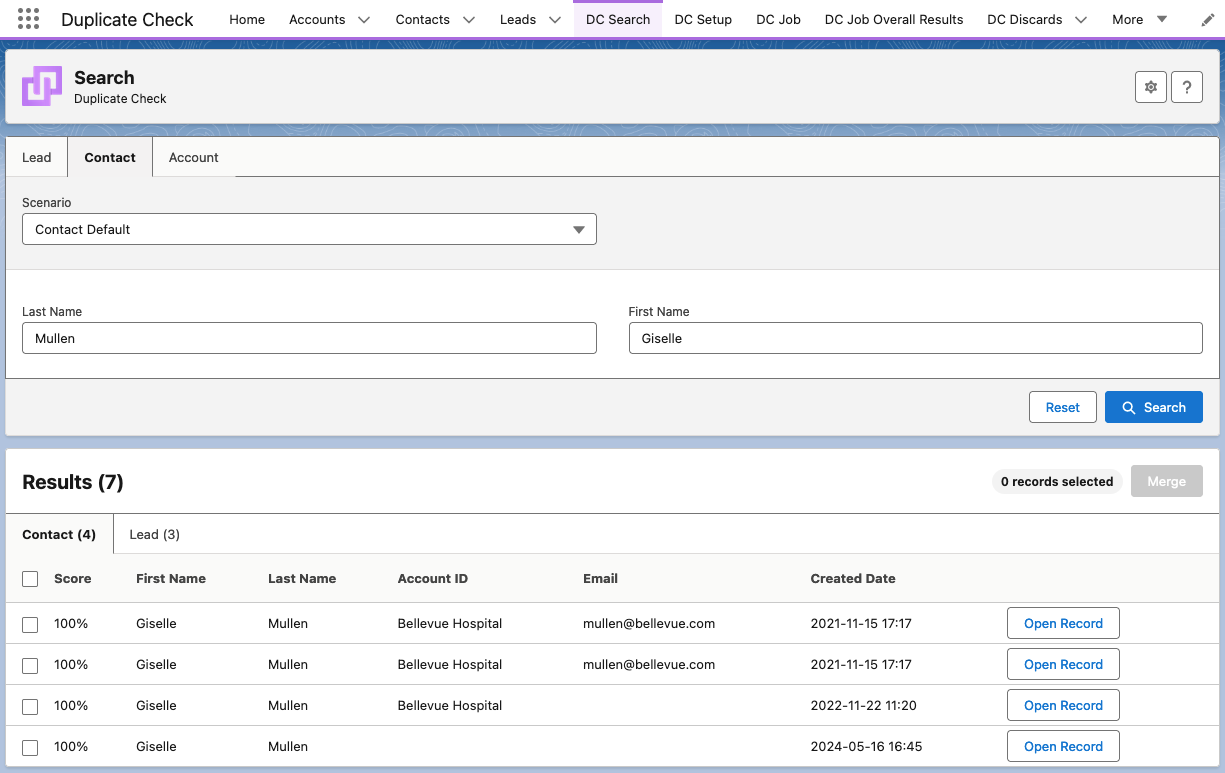 Deduplicate search results with four duplicate Contacts and three Leads. The duplicates all score 100% even though not all fields have the same value, because the scenario is set to disregard empty fields.
The deduplicate search results are shown below the search fields. If cross-object is configured, cross-object results are shown as well, on a separate tab. You now have several options:
- To Merge two or more duplicate records, select them and click Merge
 at right.
 - To Convert Leads, click Convert
 at the Lead you want to convert.
 - To see more details of a duplicate record, click Open Record
 .
. - To run another search, click Reset
 below right of the search fields to empty the fields and enter new values.
Searching with Record Types
If enabled in Deduplicate Setup > Settings tab General, you can choose to search based on record types. Note that this is not a filter that searches only within one record type. Instead, searching depends on the "Record Types" setting in Deduplicate Setup > Object Configuration: configure an Object > tab Record Types. There you can set per record type which scenarios should be used, and with which record types the records should be matched in the search for duplicates.
For example, you can set in the Record Types setting that for record type A, only scenario X should be used, and that records of record type A should only be matched with records of record types A and B.
When you select record type A in the Deduplicate Search input, these settings will be used in the duplicate search process.