

Record Validation Live
Record Validation Live performs a real-time search and presents all set-up fields and their validation status when opening a record. Instantly validate these fields for the record you are currently working on.
RV Live can be integrated into any record page layout in your Salesforce Org.
Install or update RV Live
Read more about installing RV Live in Add and configure RV Live.
In RV release Spring '24 (3.107), RV Live was redesigned to be more user-friendly, for a better user experience. To use the new RV Live, simply switch out the old Record Validation page component with the new RV Live component. Read more in Update to the new RV Live.
 The validation status of set fields as shown when opening a record
RV Live Validation Information
| Field | The field to validate. All validation fields that are configured in the Address validations, Phone number validations, or Email validations settings, will be shown here once they contain a value. Note that the Address field only appears once a country was entered. |
| Message | Current field validation status as detected by the Record Validation Live service. |
| Field Status |  This field has not been validated yet, or has been changed manually, and needs validation. This field has not been validated yet, or has been changed manually, and needs validation. The current address is validated up to city level. Editing it, e.g. by selecting a suggestion from Record Validation, can change it to green status. The current address is validated up to city level. Editing it, e.g. by selecting a suggestion from Record Validation, can change it to green status. This field is fully validated. This field is fully validated. This field cannot be validated due to unusable or invalid data. This field cannot be validated due to unusable or invalid data. |
| Validated on | Date and time of the last validation |
| Record Status | Indicates the status of the entire record. It will take the lowest validation status found for the validation fields. |
| --- | --- |
 |
 |
Action Buttons
 |
Use Validate all to validate all validation fields in one go. |
Clicking Validate all shows you all validation fields with their current and suggested values, and options to edit the suggestions.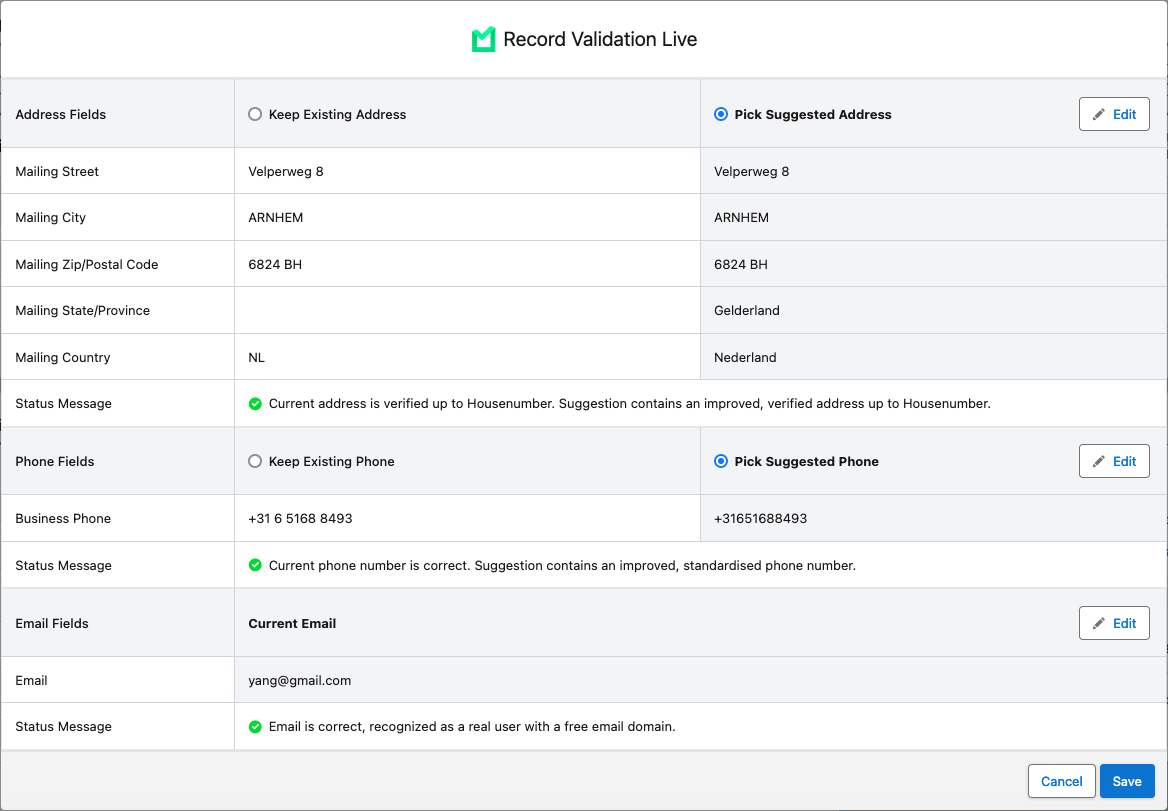 |
|
Clicking Validate shows you the details of the selected validation field, with its current and suggested values, and option to edit the suggestions. |
### Validating record data with RV Live To validate incomplete or incorrect record data: 1. In the RV Live block, - Click Validate All  to validate all fields in one go to validate all fields in one go- Click Validate  to validate one of the fieldsThe validation window opens. to validate one of the fieldsThe validation window opens.2. Select whether to keep the existing values, or pick the suggested values. If you think neither are correct, click Edit  to enter a custom value. to enter a custom value.3. If you clicked Edit to make changes, click Validate  to validate your changes, or Restore to validate your changes, or Restore  to revert to the previous value. to revert to the previous value.4. Click Save. 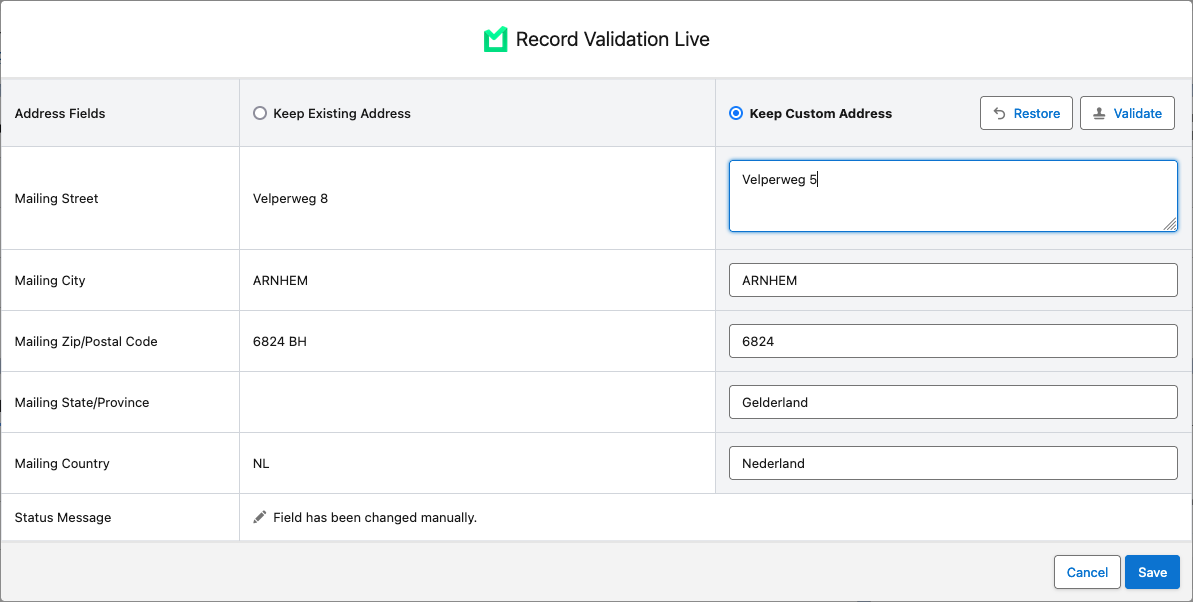 After saving, the validated fields will show as green in the RV Live block. |