

Mass Update action
Use the Mass Update action to update several records with identical data, or with values from a linked field.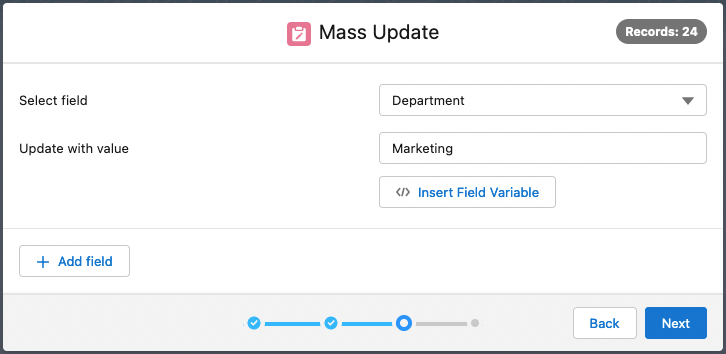
Using the Action
Select the records you want to update in a list view, or by creating a new job.
In the Action Launcher (top right in list view, or the next window in the DAP Job modal), select Mass Update and click Next.
At Select field, select a field to update
At Update with value, enter the new value. Enter a set value to add to all selected records, or click Insert Field Variable
 to use a field variable.
If you leave a value empty, the field will be cleared on the records.
For the picklist options for Date fields see below.Add one or more conditions for updating a record with Add Condition
 (optional). Click Add Condition Logic
  to define multiple conditions, e.g.
 1 AND 2if the records must meet both conditions.The selected field will only be updated if a record meets the set conditions. Use this to combine similar Mass Updates in one run.
Add more fields to update with the Add Field button. Remove fields with the Delete Field
 button.
Click Next.
In the confirmation window, check the changes you will be making and click Start.
If you ran the action from a list view: once the progress bar is at 100% completed, click Finish to return to the object overview.
If you ran the action as a Job, you are returned to the Job Overview, where you can view the job results information via the Info button.
You have now updated all selected records.
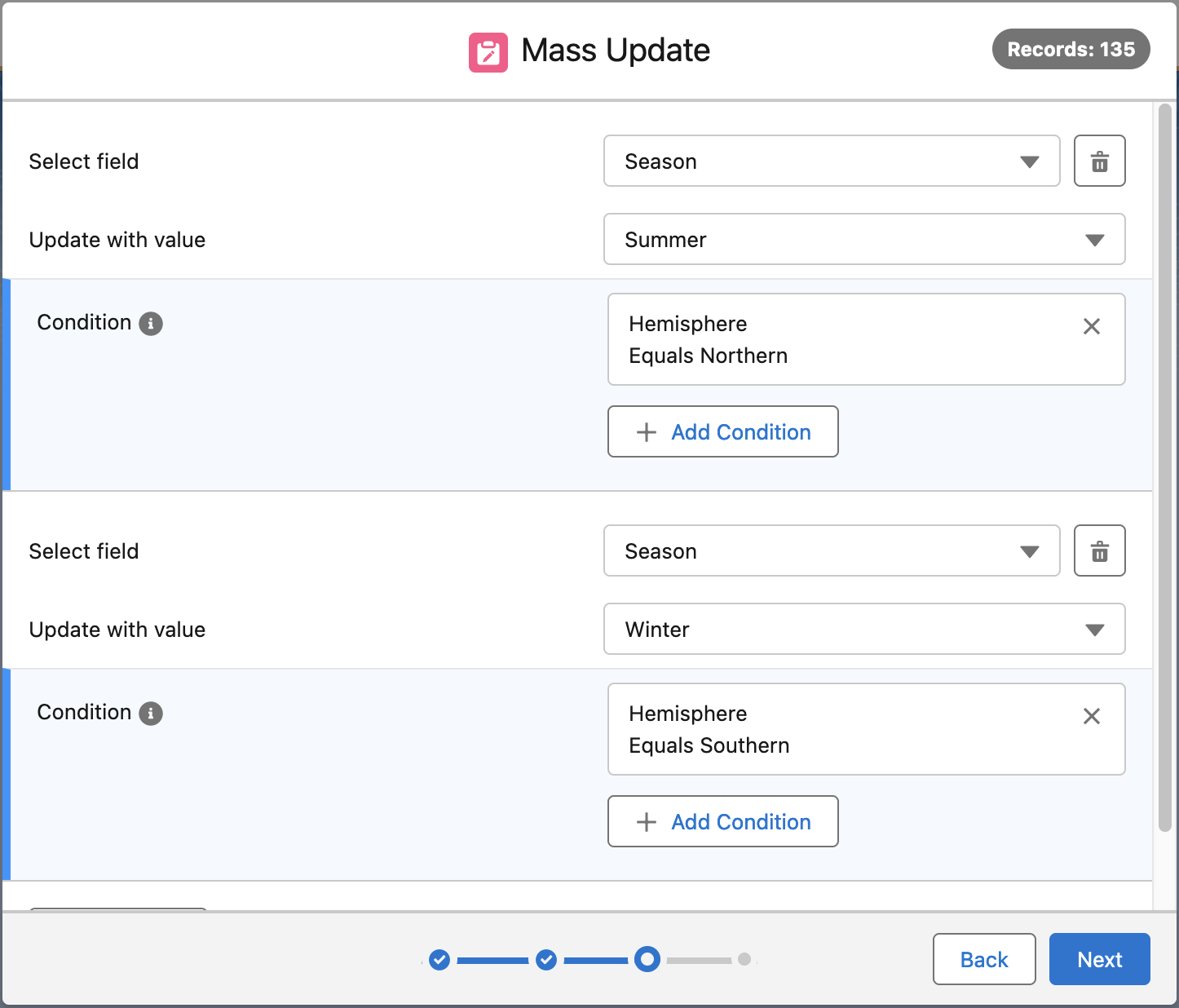
This Mass Update action will update the Season field to Summer if the value in field Hemisphere is Northern, and to Winter if the value is Southern.
Date Field Options
If you selected a Date field at Select Field, you can update with an absolute or a relative value. Choose from the following options:
| Today | Today's date will be entered. For actions that will run in the future, such as macros or scheduled jobs, "Today" is the day of execution. |
| Today plus custom number of days | Today's date plus a number of days will be entered. Enter the number of days to add in the "Number of days" field that appears. For actions that will run in the future, such as macros or scheduled jobs, "Today" is the day of execution. For example, if you enter 5 as the number of days, and the action is executed on July 20th, the date that will be filled in is July 25th. |
| Custom Date | Pick a date to enter when updating the records. As this is a set date, this option might be less useful for macros or scheduled jobs. |
Note that relative date values are not available for Date-Time fields, because of technical limitations.
Exclude fields from mass updating
In the Action Library you can set fields to be excluded from mass updating. This way users cannot update certain fields in bulk, but can still edit these fields on single records. Note that the excluded fields can still be set for updating in the Macros of these actions. Read more here.
Use Case
Mass Update on Report Records use case
Watch an example of how to use the Mass Update action, in this case on the result...
insert-question 2011776