

Flow Action - Direct Process
The Flow Action feature is available in the Premium Edition.
The "Direct Process" flow action lets you add a record to be processed in Duplicate Check's Direct Processing feature.
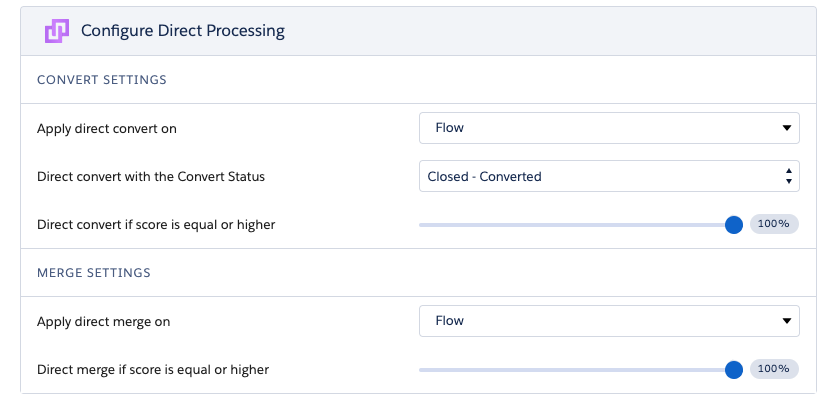
Step 1 Configure Direct Processing to process records that are added via a flow
Navigate to the DC Setup.
Open the Object you want to configure this for.
Navigate to the "Direct" tab.
Apply a direct Convert or direct Merge to "Flow".
Step 2 Store a Record ID to serve as input
The "Direct Process" flow action needs a Record ID to serve as input for the action. For example, store an ID in a variable, or collect it from a screen flow.
Step 3 Use the "Direct Process" flow action
From the Elements section, drag a new Action to the screen from the Toolbox on the left side.
.png)
In the New Action dialog, search for "Process record via Direct Processing".
At "Label", define a name for your action. If the API name is not set automatically, make sure an API name is defined as well.
At "Set Input Values", make sure to insert a Record ID.
Optional: At "Async", decide if you want to process the duplicate synchronically or a-synchronically. By default, the record is processed synchronically.
If you want to process the records a-synchronically, make sure to switch the toggle to include the Async option. As a value, enter a Global Constant set to true.

Click "Done".
Step 4 Connect your actions to the start trigger
Make sure your actions are connected to the start trigger.
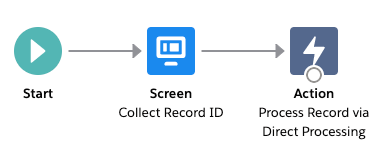
In this example, we're first collecting a Record ID via a screen flow that serves as input for the Direct Processing flow action.
Step 5 Run the flow
Run the flow by clicking "Run".
Direct Processing action result
After running the flow, the action returns a parameter that can be used further in the flow. For example, show a notification to the user if the action succeeded or failed.
| Parameter | Description |
| Succeeded | A boolean that returns "True" or "False". |