

Uninstall Duplicate Check from Salesforce Lightning
We're sorry you are thinking about uninstalling Duplicate Check. If you have any feedback for our team, we would greatly appreciate it if you could let us know at support@plauti.com.
1 Remove the Disable Duplicate Check buttons
Remove buttons from Lead Object
Navigate to the Salesforce 'Setup' page and in the 'Quick Find' search box type 'Object Manager'. Or you can manually find it under Platform Tools - Objects and Fields - Object Manager
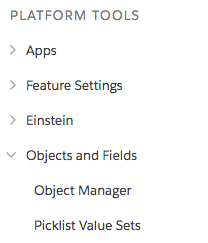
Find the 'Lead' Object or type it manually in the search box and then click on it.
Navigate to the 'Page Layouts'
Click on 'Lead Layout'
Remove the 'Disable Duplicate Check' field from the Leads Page Layout.
.png)
In the buttons area, remove the 'DC Check' and 'DC Convert' buttons from the Page Layout.
.png)
Click 'Save'
Remove buttons from Account Object
Navigate to the Salesforce 'Setup' page and in the 'Quick Find' search box type 'Object Manager'. Or you can manually find it under Platform Tools - Objects and Fields - Object Manager
.png)
Find the 'Account' Object or type it manually in the search box and then click on it.
Navigate to the 'Page Layouts'
Click on 'Account Layout'
Remove the 'Disable Duplicate Check' field from the Accounts Page Layout.
.png)
In the buttons area, remove the 'DC Check' and 'DC Convert' buttons from the Page Layout.
.png)
Click 'Save'
Remove buttons from Contact Object
Navigate to the Salesforce 'Setup' page and in the 'Quick Find' search box type 'Object Manager'. Or you can manually find it under Platform Tools - Objects and Fields - Object Manager
.png)
Find the 'Contact' Object or type it manually in the search box and then click on it.
Navigate to the 'Page Layouts'
Click on 'Contact Layout'
Remove the 'Disable Duplicate Check' field from the Contact Page Layout.
.png)
In the buttons area, remove the 'DC Check' and 'DC Convert' buttons from the Page Layout.
.png)
Click 'Save'
2 Remove the DC Merge buttons
Remove the DC Merge button from Lead Object
Navigate to the Salesforce 'Setup' page and in the 'Quick Find' search box type 'Object Manager'. Or you can manually find it under Platform Tools - Objects and Fields - Object Manager
.png)
Find the 'Lead' Object or type it manually in the search box and then click on it.
Navigate to the 'Search Layouts'
Click on the arrow at 'List View' then 'Edit'
Remove 'DC Merge' from 'Selected buttons'
.png)
Click 'Save'
Remove the DC Merge button from Account Object
Navigate to the Salesforce 'Setup' page and in the 'Quick Find' search box type 'Object Manager'. Or you can manually find it under Platform Tools - Objects and Fields - Object Manager
.png)
Find the 'Account' Object or type it manually in the search box and then click on it.
Navigate to the 'Search Layouts'
Click on the arrow at 'List View' then 'Edit'
Remove 'DC Merge' from 'Selected buttons'
.png)
Click 'Save'
Remove the DC Merge button from Contact Object
Navigate to the Salesforce 'Setup' page and in the 'Quick Find' search box type 'Object Manager'. Or you can manually find it under Platform Tools - Objects and Fields - Object Manager
.png)
Find the 'Contact' Object or type it manually in the search box and then click on it.
Navigate to the 'Search Layouts'
Click on the arrow at 'List View' then 'Edit'
Remove 'DC Merge' from 'Selected buttons'
.png)
Click 'Save'
3 Remove DC Entry override pages
If you had DC Entry enabled, remove the DC Entry override pages.
Remove DC Entry from Lead Object
Go to Salesforce Setup > Object Manager > Lead.
At left, click Buttons, Links and Actions.
Find the 'New' button and click Edit at right
At Lightning Experience Override, de-select 'dupcheck:dc3RecordForm'. For example, use another form, or set to '-- None --' and tick 'Use the Salesforce Classic override' instead.
Find the 'Edit' button and click Edit at right
At Lightning Experience Override, de-select 'dupcheck:dc3RecordForm'. For example, use another form, or set to '-- None --' and tick 'Use the Salesforce Classic override' instead.
Click Save.
Remove DC Entry from Account Object
Go to Salesforce Setup > Object Manager > Account.
At left, click Buttons, Links and Actions.
Find the 'New' button and click Edit at right
At Lightning Experience Override, de-select 'dupcheck:dc3RecordForm'. For example, use another form, or set to '-- None --' and tick 'Use the Salesforce Classic override' instead.
Find the 'Edit' button and click Edit at right
At Lightning Experience Override, de-select 'dupcheck:dc3RecordForm'. For example, use another form, or set to '-- None --' and tick 'Use the Salesforce Classic override' instead.
Click Save.
Remove DC Entry from Contact Object
Go to Salesforce Setup > Object Manager > Contact.
At left, click Buttons, Links and Actions.
Find the 'New' button and click Edit at right
At Lightning Experience Override, de-select 'dupcheck:dc3RecordForm'. For example, use another form, or set to '-- None --' and tick 'Use the Salesforce Classic override' instead.
Find the 'Edit' button and click Edit at right
At Lightning Experience Override, de-select 'dupcheck:dc3RecordForm'. For example, use another form, or set to '-- None --' and tick 'Use the Salesforce Classic override' instead.
Click Save.
4 Uninstall Duplicate Check from Salesforce
Navigate to Salesforce Setup > Platform Tools > Apps > Installed Packages
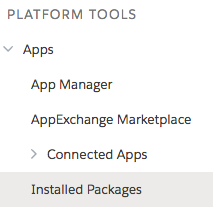
Find 'Duplicate Check for Salesforce' and click 'Uninstall'
The uninstall will run in the background, and it may take some time till it finishes.
Thank you for using Duplicate Check!