

Creating a Named Credential for Ask AI
Last updated
Ask AI action with AWS Bedrock
The following configuration is needed only if you plan to use the 'Ask AI' action in combination with AWS Bedrock as AI model provider.
The Ask AI action in Salesforce connects with AWS Bedrock via an External Credential linked to a Named Credential, instead of via a Remote Site configuration as is the case for other AI model providers.
Setting up a Named Credential for AWS Bedrock consists of three steps:
- Create an External Credential
- Create a Named Credential
- Configure Principal Access
Creating an External Credential
- Go to Salesforce Setup > Named Credentials.
- On tab 'External Credentials', click New.
- At Label, enter
AWS Bedrock - At Name, enter
AWS_Bedrock - At Authentication Protocol, select 'AWS Signature Version 4'.
- At Service, enter
bedrock - At Region, enter your region as stated by AWS (for example 'eu-central-1' without quotes).
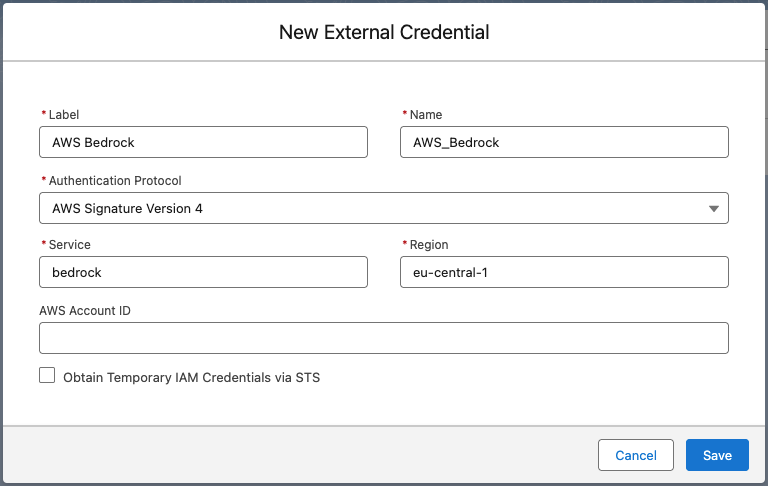
- Click Save.
- Scroll down to the 'Principals' section and click New.
- At Parameter Name, enter
Keys - At Access Key, enter the API Key that came with your AWS subscription.
- At Access Secret, enter the Secret Key that came with your AWS subscription.

- Click Save.
You have created the External Credential.
Creating a Named Credential
Now create a Named Credential:
- Still in the Named Credentials section of the Salesforce Setup, go to tab 'Named Credentials' and click New.
- At Label, enter
AWS Bedrock - At Name, enter
AWS_Bedrock - At URL, enter the Amazon Bedrock Runtime API URL. It should have the format "https://bedrock-runtime.your-region-as-stated-by-AWS.amazonaws.com" (for example 'https://bedrock-runtime.eu-central-1.amazonaws.com' without quotes).
- At External Credential, select 'AWS Bedrock' (this is the External Credential you just created).
- At Allowed Namespaces for Callouts, enter
plauti
- Click Save.
Configuring Principal Access
Next, configure principal access via a Profile or Permission Set.
- Still in Salesforce Setup, go to the profile or permission set that you want to give access.
- Go to External Credential Principal Access and Edit.
- Move 'AWSBedrock - Keys' to the Enabled External Credential Principals.
- Click Save.
You have now fully configured the Named Credential. Enter AWS_Bedrock in the Ask AI action configuration at Named Credential.