

Upgrading from pre-Version 9.20 to 9.20+
Last updated
Version 9.20 brought some improvements to SuperRoundRobin MatchRules. To take advantage of these improvements, follow these instructions after upgrading from a pre-Version 9.20 installation.
Capacity Model options
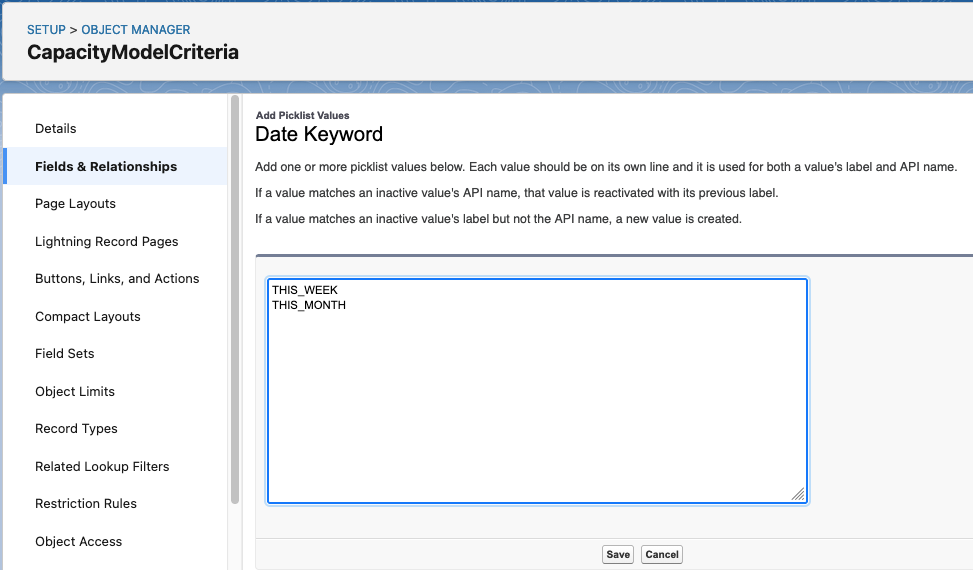
Two new options have been added to Capacity Model criteria: the THISMONTH and THISWEEK date literals can now be used as well. To make these available, add them to the DateKey picklist as follows:
- Go to Setup > Object Manager and open the CapacityModelCriteria Object.
- At left, click Fields & Relationships.
- Open the Date Keyword picklist by clicking its name in the list.
- Scroll down to the Values section.
- Check whether values THISWEEK and THISMONTH are already present in the list. If so, you don't need to do anything.
- If the values are not yet present in the Values section, click New.
- Add the THISWEEK and THISMONTH values, each on their own line.
- Click Save.
Custom MatchRule Logic
This is the ability to specify how the MatchRules are evaluated using boolean logic such as (1 AND (2 OR 3)).
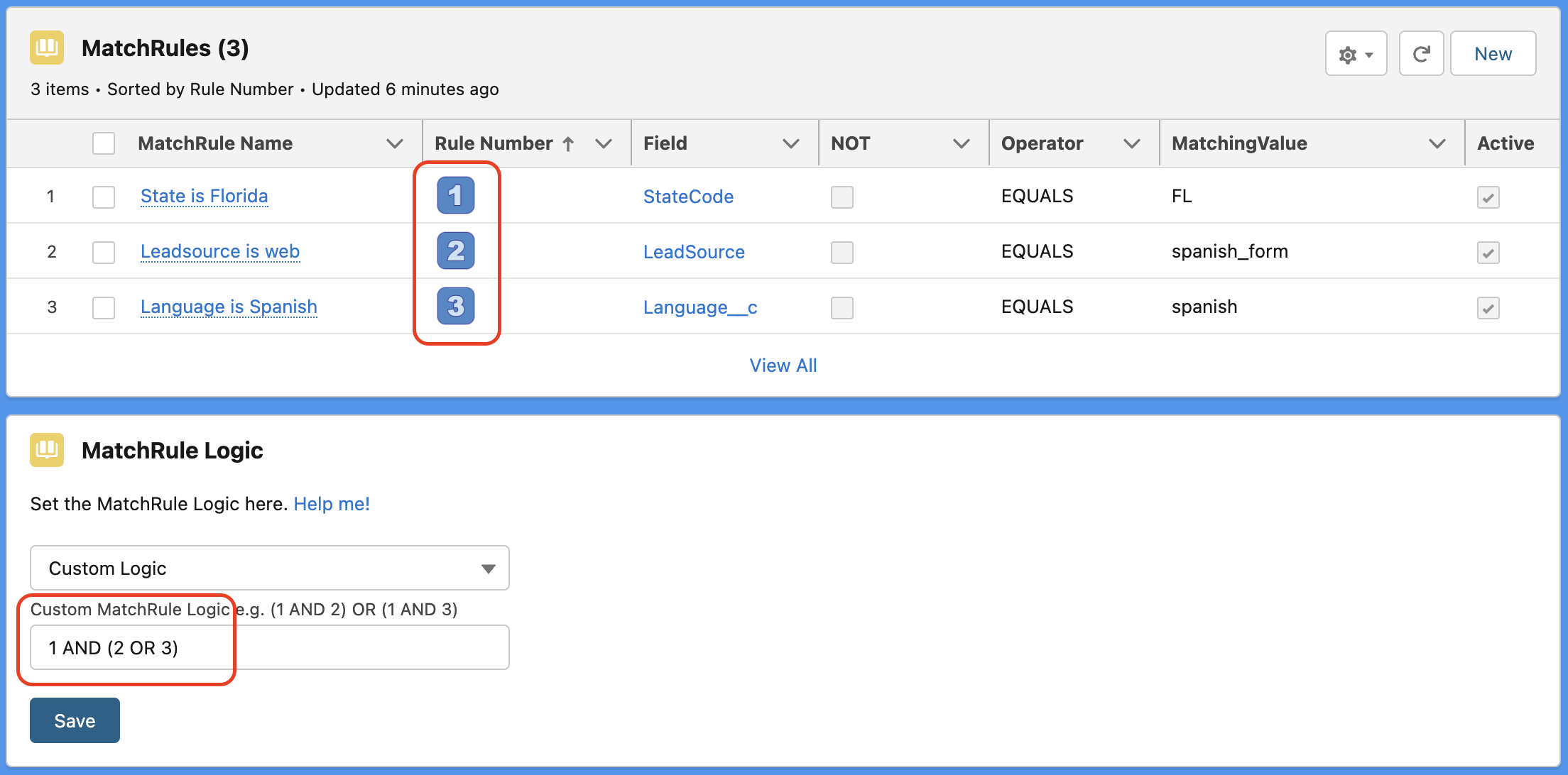
Actions required post-install to display the Rule Number field
- Go to Setup > Object Manager > MatchGroup
- Select Page Layout in the side navigation
- Scroll down to the MatchRule related list
- Click the spanner icon and add the Rule Number field to the selected fields
- Move the Rule Number field to the top, just beneath the MatchRule name
- Save
Permissions:
- If you do not belong to the SRR Admin Permission Set, add yourself to this permission set and/or set the field permissions for the MatchRule.Rule_Number__c field to visible.
- Find the MatchGroup.Custom_MatchRule_Logic__c field, click Set Field-Level Security and make it visible for the System Administrator Profile and any other Profile for people with access to SRR
Verify that the Rule Number shows up on the MatchGroup layout. If the Rule Number fields are out of order, add the CreatedDate field to that view and order by CreatedDate.
STARTSWITH and ENDSWITH operators
In addition to the EQUALS, CONTAINS, GREATERTHAN and LESSTHAN operators, we have added STARTSWITH and ENDSWITH:
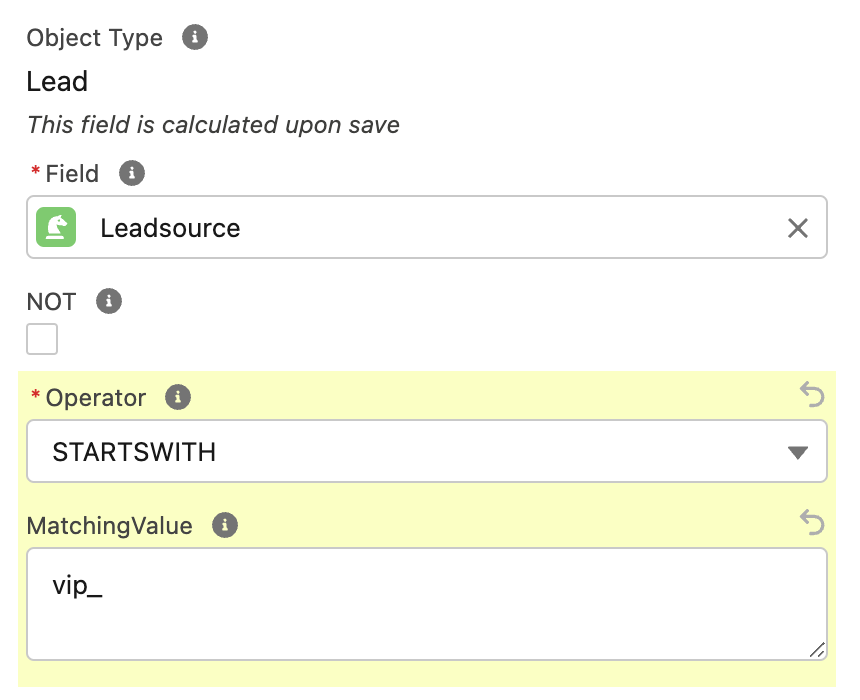
Actions required post-install to use the new operators
- Go to Setup > Object Manager > MatchRule
- Select Fields and Relationships in the side navigation
- Find the Operator field
- Scroll down to the Values section and click the New button
- Add STARTSWITH and ENDSWITH
- Save
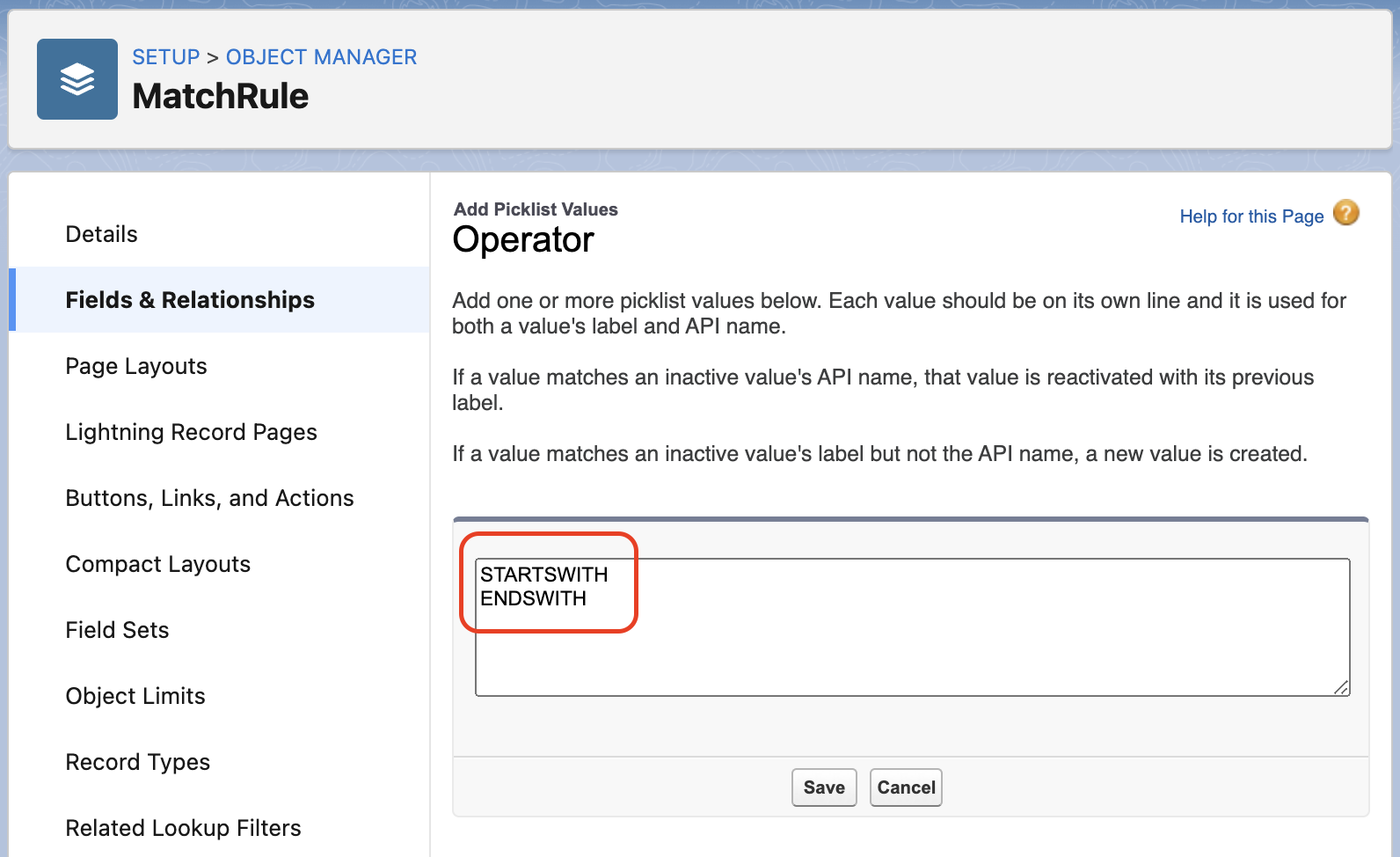
Now if you go back to your MatchRules, you will find the STARTSWITH and ENDSWITH operators in the picklist for you to use.