

Connections
Last updated
Connect your team with your Org or Environment
Connect your team with a Salesforce Org or Dynamics 365 environment, to run Deduplicate jobs import or export data, and more. You can connect your team to multiple Orgs and Environments, for example your Salesforce Production Org and one or more Salesforce Sandbox Orgs, or a Salesforce Org and a Dynamics 365 Environment.
Once you are logged in, you already have one Connection to start with.
Manage your Connections, or add more, via the bottom left menu option Connections  .
.
An Org or Environment can only be connected to one Team. However, it is possible to connect both Plauti Cloud, Plauti Desktop, and Plauti Server to the same Org or Environment.
Creating a Connection
To create a new Connection to a Salesforce Org or Dynamics 365 Environment:
At bottom left, click Connections
.In the Connections menu, click New Connection
 top right.
Click
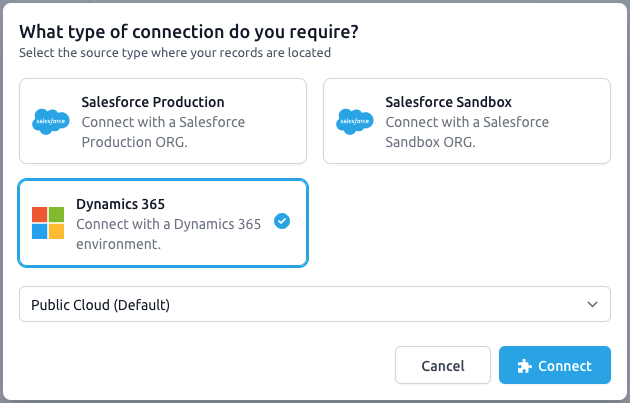
- Salesforce Production or Salesforce Sandbox to connect with a Salesforce Production or Sandbox Org, or
- Dynamics 365 to connect with a Microsoft Dynamics 365 Environment.
Select the environment type in the select list that appears below. If you do not know your environment type, it most likely is 'Public Cloud (Default)'.
Click Connect
 .
.
A Login window pops up. Enter your login data for the Salesforce Org or Dynamics 365 environment you want to connect to.
- Note that for some Salesforce Sandbox Orgs you might need to use the 'Use Custom Domain' option bottom right.
- If you are connecting to Salesforce and you get an 'OAuth' login error, the app needs to be installed first. Proceed in Cannot login, OAuth error, then return here.
If prompted, allow access to Plauti Cloud Connection Services.
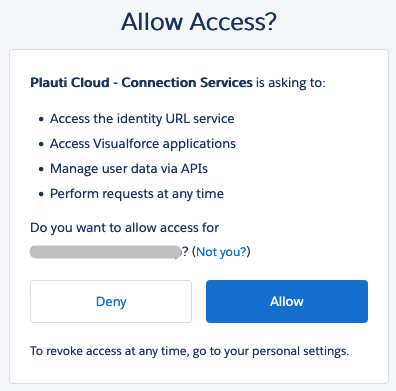
If you are logging in using your Microsoft credentials, select the Dynamics 365 environment you want to connect to.
If prompted, agree to the terms of the Data Processing Agreement and click Proceed.
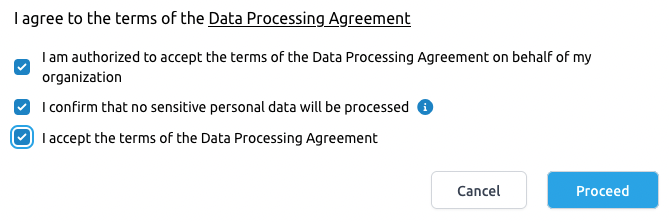
Your team is now connected to your Salesforce Org or Dynamics 365 Environment.
OAuth error during login
If you are connecting to Salesforce and you get an 'OAuth' login error, the app needs to be installed first. Proceed in Cannot login, OAuth error, then return here.
Salesforce: link a Sandbox to your Production license
You can use a connection with a Salesforce Sandbox Org as a standalone connection. However, to use all licensed Plauti Deduplicate or Plauti Verify features in your Sandboxes as well, link the Salesforce Sandbox connections to your Production license.
For Plauti Cloud: read more in Licenses.
For Plauti Desktop and Plauti Server: read more in Linking a Sandbox org to your license.
Managing Connections
Connections Overview
At bottom left, click Connections  to access the Connections overview. Here you see all current Connections, and their information such as when they were created, whether they are active or inactive, etc.
The username at "On behalf of..." indicates the user that created the Connection. This user will also be displayed as the user who started a job for example.
Connection Details
Click on a Connection to see its details, such as the type of connection, and the Org ID or environment ID. At top right you also have a few managing options.
 Edit Edit |
Edit the name of the connection and add a description, to quickly see which connection it concerns. |
 Pause Pause |
Temporarily deactivate the connection. A paused connection will no longer retrieve jobs from Salesforce or Dynamics 365. After pausing, the job history for the connection is still available. |
 Activate Activate |
Re-activate the connection to start retrieving jobs again. |
 Delete Delete |
Delete the connection. After deletion, the job history for the connection will stay available. |
Re-authorizing a Connection
Connections can expire, for example when tokens are retracted. This is indicated for each Connection in the Connections overview: the Connection is marked as 'Connection inactive'. 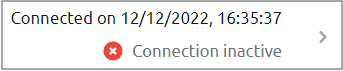 Click Re-authorize to authorize a Connection again (Plauti Cloud), or create a new Connection for the Org or environment. This will also re-activate any scheduled jobs that were on Holding due to the inactivity. If you create a new Connection for your Org or environment, the same settings as for the previous Connection will be used.
The Job History for inactive, expired Connections will stay available.
Let a connection auto-run Deduplicate and Search Index Jobs
The setting for allowing your connection to auto-run Plauti Deduplicate Jobs is located in the Plauti Deduplicate > Settings menu option on the left-hand side.