

Sharing Deduplicate Job Results
Last updated
Share Plauti Deduplicate Job results with other Salesforce users within your Org via mail, tasks, or by sharing a direct link. Share an entire duplicate results list, or share a subset by applying a filter to the job results. You can also share a single result group.
By doing this, you can share a particular results list without granting the user access to all other deduplicate jobs.
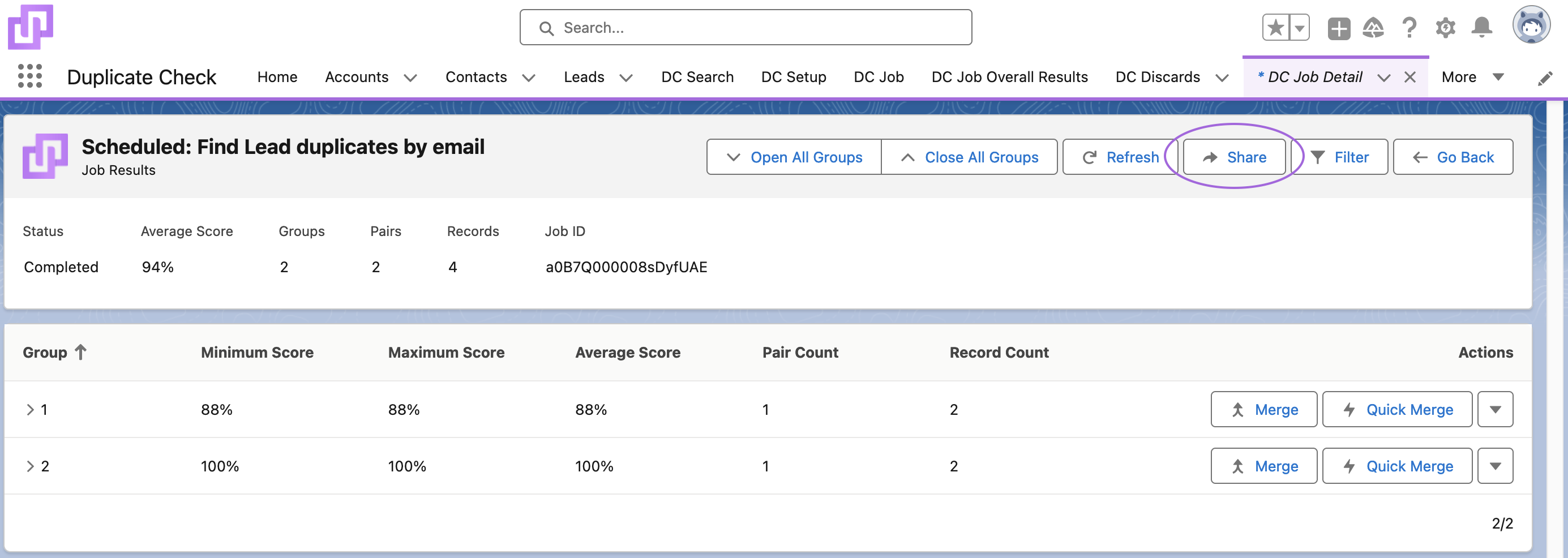
Share results after running a Deduplicate Job. After your Plauti Deduplicate job is finished, access the results by clicking View Results on the Deduplicate Job Overview page.
Requirements
To view the duplicate results and merge pages, a user profile needs access to the dupcheck.dc3BatchDetail and dupcheck.dc3Merge Visualforce pages.
Share Deduplicate Job results
To share Plauti Deduplicate job results:
Go to Deduplicate Job and find the job you want to share the results of.
At the job, click View Results
 to open the job results.
At top right, apply a Filter
 if you only want to share certain result groups, e.g. only groups with a certain group number, groups that contain records with a certain record owner, etc. You can apply multiple filters.
 The user that opens the shared results list will not be able to remove the filter.
Click Share
 .
.At Share Method, select the way you want to share the job results: by direct link, email, or task.
Direct Link presents you with a URL.
Click Copy to Clipboard to copy the link and share it with others.
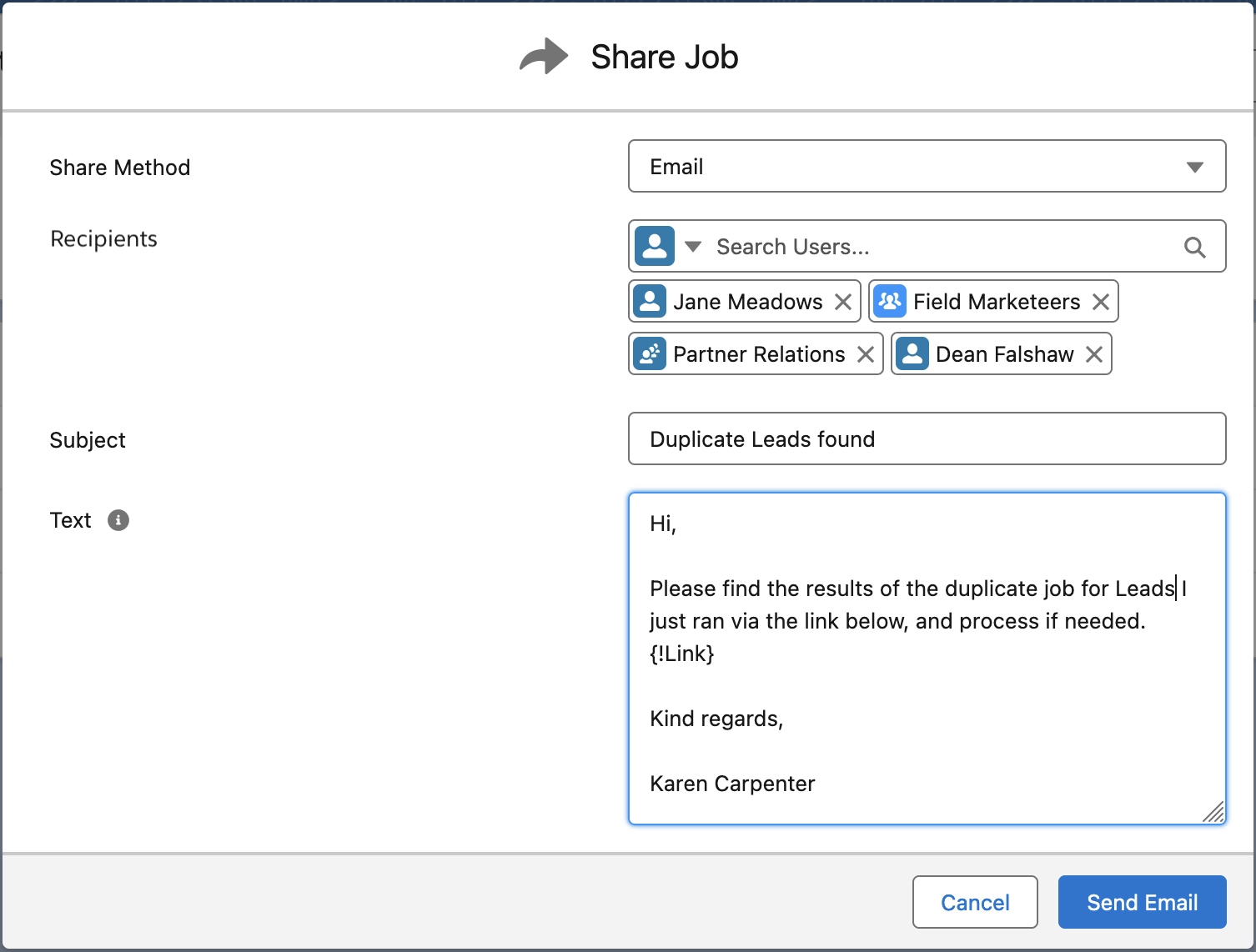
Select Email to send a link to the job results via email.
At Recipients, select one or more Salesforce users, groups, or queues to send the email to.
Enter a Subject.
Edit the text if needed.
Do make sure to leave the {!Link} variable in place! Upon sending it will be replaced with the actual link to the job results.
Click Send Email.
](/support/files/helpjuice/images/f577b9ce7a83682dfacc613e52209226.png)
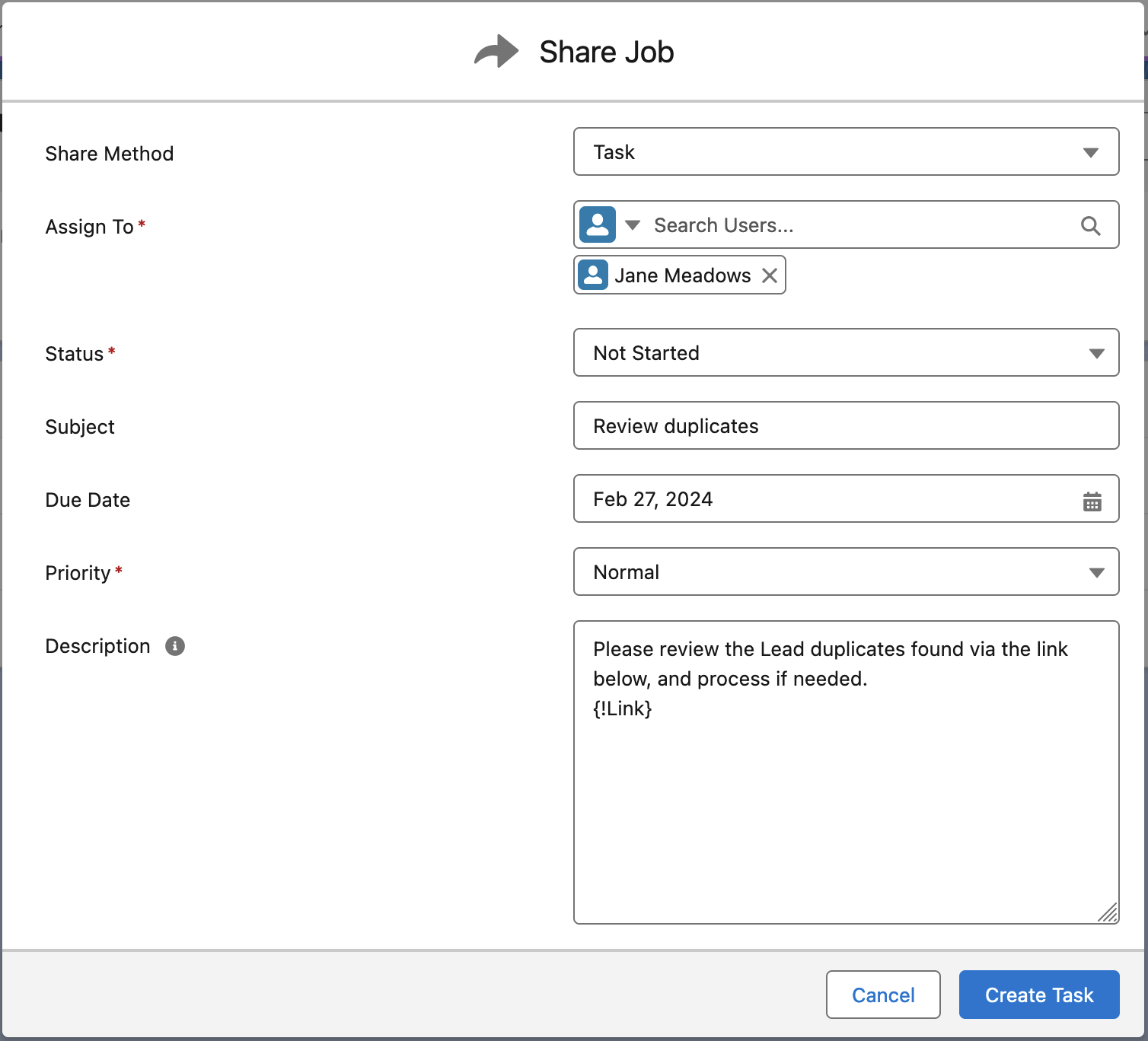
lect Task to create a Task for reviewing or processing the job results, including a link to the results.Assign the task to one or more users, groups, or queues.
Select a Status and a Priority.
If needed, enter a Subject and a Due Date.
Edit the Description if needed.
Do make sure to leave the {!Link} variable in place! Upon creating the task it will be replaced with the actual link to the job results.
Click Create Task.
](/support/files/helpjuice/images/5bd96ba3ffd35f8436d8d83c7b83bc8e.png)
You have now shared the Deduplicate Job results with the selected users. If you applied a filter before sharing the recipients cannot remove the filter. And if they do not have access to the Plauti Deduplicate Job Overview page, they cannot other duplicate results either.
Share One Duplicate Group
To share only one result group, open the Advanced Actions menu  of the duplicate group and click Share Group
  .
.
Required permissions
To view the duplicate results and merge pages, a user profile needs access to the "dupcheck.dc3BatchDetail" and "dupcheck.dc3Merge" Visualforce pages.
Restrict access to all other jobs
If you don't want your user to access all deduplicate jobs on the Jobs Overview page, make sure the user profile does not have access to the "dupcheck.dc3Batch" Visualforce page.
How to set Visualforce page security from Profiles
You now know how to share duplicate results list with a user. Did you know you can share a specific merge page as well?