

Plauti Verify Job Filter
Last updated
When starting a new validation job, in the job configuration, you can apply a filter in order to validate only certain Object records instead of all of them.
Configuring the PV Job Filter
Create a new Plauti Verify Job. First add a Job Name and an Object. Then,
- Click Add Filter
 .
. - Select a Field to filter on.
- Add an Operator and a Value.
- Click Done.
Only the records that adhere to this filter will be included in the validation job.
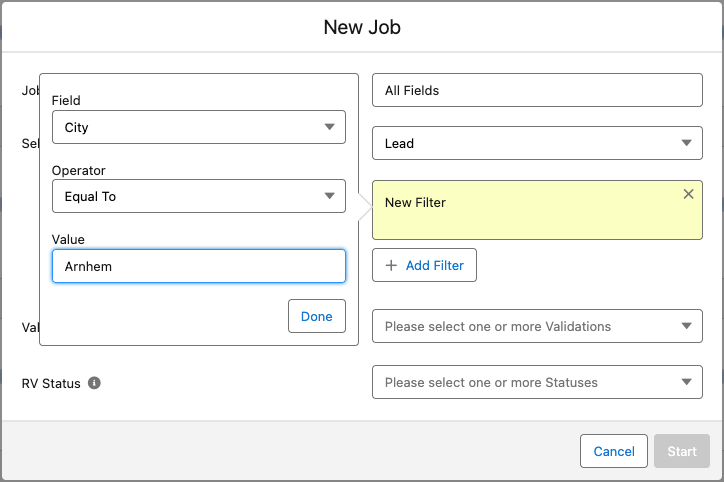 With this filter, only records where the city equals Arnhem will be included in the job.
You can add one or multiple filters.
- Click Add Filter** again to add more filters** (optional).
If needed, define the dependency of multiple filters with Filter Logic. If you do not add filter logic, all filters will be taken into account, i.e. "Filter 1 AND Filter 2 AND Filter 3".
To configure Filter Logic, click Add Filter Logic
 (optional).
Use the numbers in front of the filters to define the relative logic. For example, enter
1 OR (2 AND 3)to state that a record should either meet filter 1, or filter 2 and filter 3, to be included in the job.As long as the filter logic is incomplete or incorrect, this will be highlighted in red.
Then continue configuring the validation job.
Filter on a relative date
For fields such as Created Date you can filter on a set value (e.g. "Earlier than May 8, 2025") or on a relative value. To filter on a relative date, use the Date Literal option as the operator. For example, use "Created Date - Date Literal - LAST_N_DAYS:3" to only include records created in the past 3 days in the job.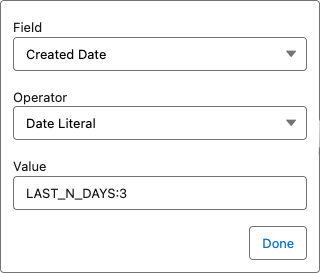
Filter on Campaign
To filter on Lead or Contact records that are in a certain Campaign, select the In Campaign field in the filter.