

Scheduled Job Overview
Last updated
The Scheduled Job Overview page shows you all active and inactive Scheduled Jobs. Check the status and details of your scheduled jobs, edit your scheduled jobs, run a scheduled job once outside of its regular schedule, and more.
The Scheduled Jobs feature is available for the Premium and PDM licenses.
Individual Runs at Deduplicate Job Page
Individual runs of a scheduled job, that have started or are already finished, can be found at the Deduplicate Job Overview for further processing. Future runs are only created at their scheduled start time.
To access the Scheduled Job Overview page:
Go to the Deduplicate Job tab.
click the Down arrow
 next to the Job Overview header to switch to the Scheduled Job Overview.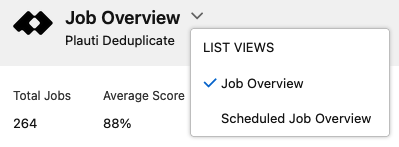
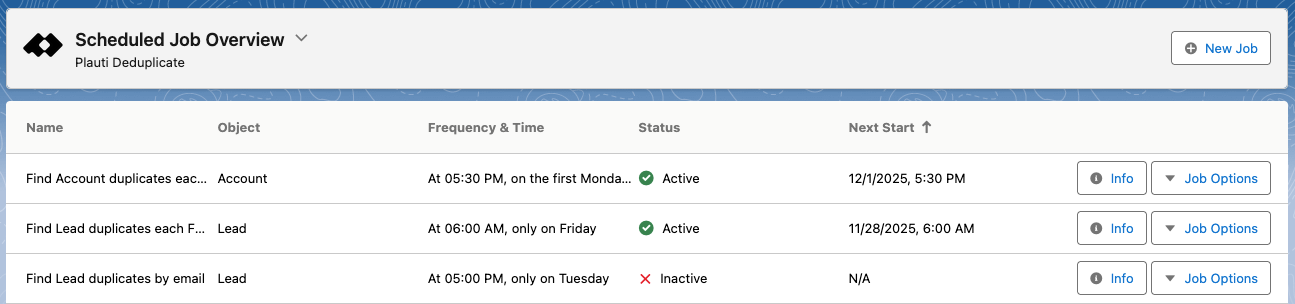
The Scheduled Job Overview opens.
General
At the top of the Scheduled Job Overview page you'll find information and buttons that apply to all jobs.
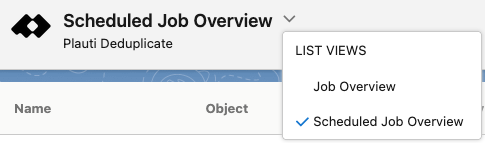 |
At top left, click the Down arrow next to the Scheduled Job Overview header to switch between the Scheduled Job Overview and the overview of single jobs. |
 |
Create a new Scheduled Job or single Deduplicate Job to find duplicate records. Read more here. |
 |
Click on a column header to sort the scheduled jobs. You cannot sort on Frequency & Time. |
Job Info
Once a Scheduled Job is created, it appears in the scheduled job list. Individual runs of scheduled jobs, that have started or are already finished, can be found at the Deduplicate Job Overview for further processing. Future runs are only created at their scheduled start time.
Each line shows the name, object, frequency, status, and next starting time of a job.

Further info and options
To see extensive job information and apply job options, use the buttons at the right of each job.
 |
Info shows extensive job information, see below for an explanation. |
 |
Click Job Options for quick job actions, such as (de)activate a job, run a job once, edit the scheduled job, or delete it. See below for an explanation. |
Info
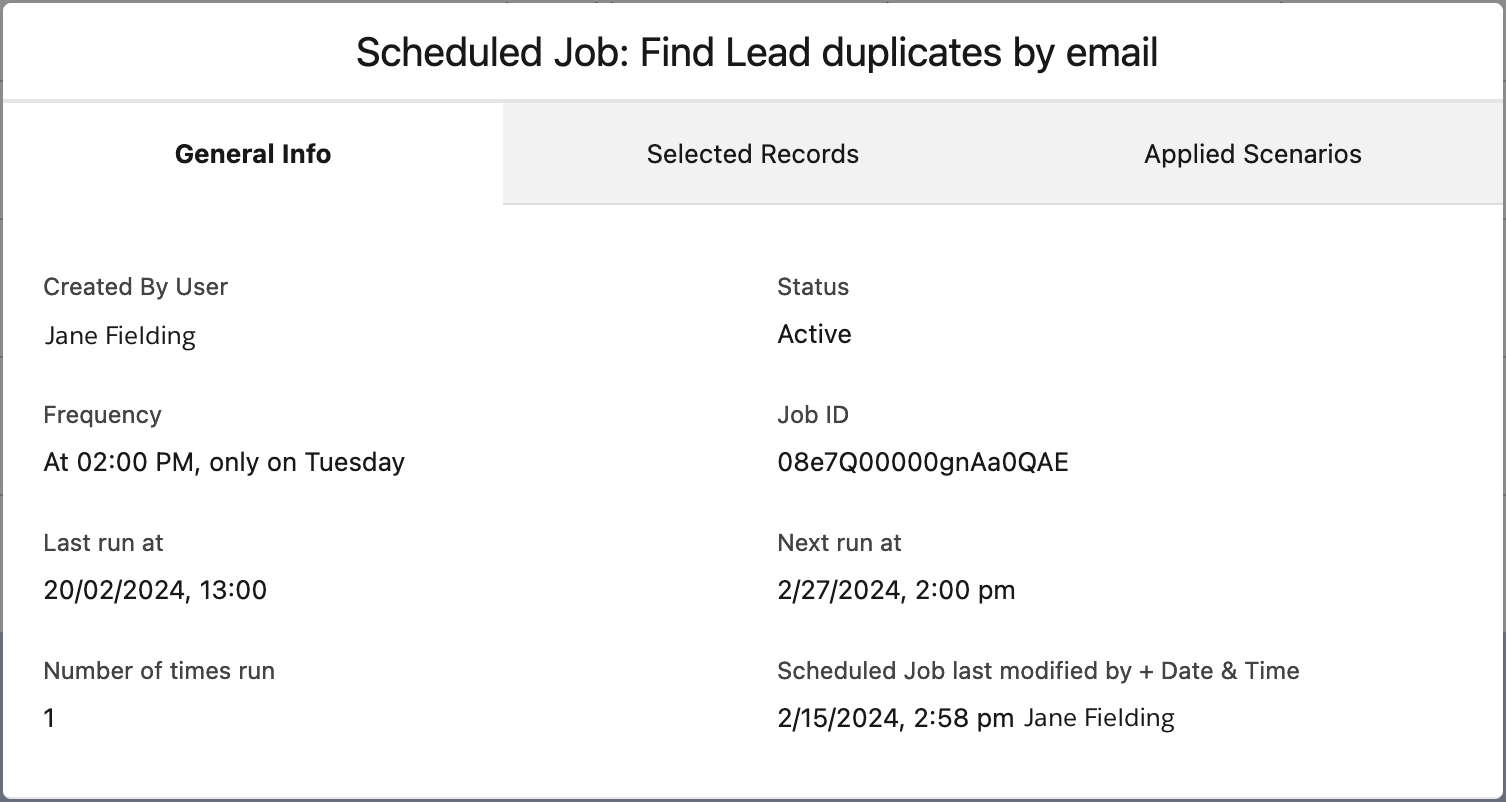
The Info modal shows you everything you could want to know about a scheduled job.
- General Info: information such as the full Frequency, Last Run At, and Number Of Times Run.
- Selected Records shows the Object, and details about any filter used.
- Applied Scenarios shows detailed information about the scenarios used in the job, like the fields, matching methods, weight and threshold, making it easier to analyze any unexpected results.
Job Options
You can apply a number of actions to a job:
 |
Activate a deactivated scheduled job in order to let it run on its scheduled times. |
 |
Stop a scheduled job from running but keep its configuration. |
 |
Start the job immediately, to run an additional time next to its scheduled times. |
 |
Edit the schedule, name, etc. of a scheduled job. |
 |
Deletes the scheduled job. Finished runs of the job, listed in the Deduplicate Job Overview, will not be deleted. |
Preferred and Actual Start Time
Salesforce schedules the Deduplicate Jobs for execution at the specified preferred start time. However, actual execution may be delayed depending on service availability.
Predefined Filters use latest setting
If you have used a predefined filter in the Filter option of a scheduled job, and at some point in the future that predefined filter is edited, the edited version of the filter will be used from then on in all future runs of the scheduled job.
Scheduled Jobs can only be processed via the Plauti Desktop app if you also have Plauti Server. In general, use Plauti Server or Plauti Cloud to process Scheduled Jobs outside Salesforce.