

Applying a DAP Job to Report results
Last updated
The records that you can run a DAP Job on can come from several different sources, such as a simple list view, but also the results of a Duplicate Check Job for example. Another source, the results of a report you have saved in Salesforce, is explained below.
Prerequisites
The report should contain at least one column that contains record IDs.
The DAP Job will run on the records in the record ID column you select. This can also be a column with records related to the report object, such as a list of Parent Accounts in an Account report. The column should contain a maximum of 1560 IDs.To run a DAP Job on report results, users need the “Run Reports” permission that lets them run a report in Salesforce.
The report should be a saved report.
Users can apply DAP Jobs to the results of saved reports that they have access to. These can be reports in a public or shared folder, or reports in a private folder of the user. The report should have been run somewhere in the past 365 days.
Running a DAP Job on report results
To use the results of a report in a DAP Job:
Go to DAP Job and click New Job
 .
.Enter a Job Name that describes what the job will do.
At Select Records, click the Reports option.

The available reports are shown.Click the report you want to use the results from If the report contains several objects, select one of the objects as well.

In this example the report 'New Leads Report' is available for DAP Job
The report is run to determine which records are available for the DAP Job.
Select the report column that contains the IDs of the records that you want to apply the DAP Job to.
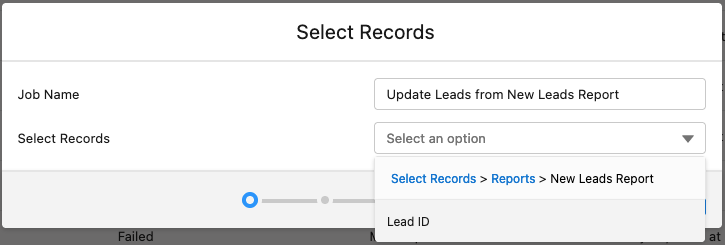
In this example the Lead ID column can be selected
Note that these are not necessarily the records in the report itself. The selected report column can also contain records that are related to the report records, e.g. the Parent Accounts in an Account report.
The Select Records field now shows the report and record ID column you selected. Hover over the field to verify which column was selected.
 The Preview Record Selection
 ** option will open the report page, where you can review the contents of the selected column.**
Click Next.
You can now continue setting up the DAP Job by selecting an Action to apply to the report records.
No results found
No results found when running DAP Job on report
When you selected a report to use in a DAP Job, and a message appears stating th...
insert-question 2004324
Report not available
Report not available for DAP Job
If you want to use the results of a report in a DAP Job, but the report is not sh...
insert-question 2004409
Use Case
Mass Update on Report Records use case
Watch an example of how to use the Mass Update action, in this case on the result...
insert-question 2011776