

Run an Auto Process job
Last updated
Plauti Verify Auto Process is a feature that you can run after a finished Record Validation job. It can process large amounts of validated records without any user interactions. Auto Process uses rules defined in a scenario for every field to determine how the different validations should be processed.
After a validation job has run, the validation results aren't yet saved to the records. Some results might not be ready for saving straight away, for example when a better suggestion exists. You can process and save or update the validation results manually one by one, but you can also let Auto Process handle it for you.
Prerequisites
- You have configured one or more Auto Process Scenarios for each field type.
Run Auto Process
On tab RV Job, find the job you want to Auto Process.
At the right of the job, go to Job Options > Auto Process.

In the Auto Process pop-up that appears, select the scenario you want to use for each field.
If you do not want to auto process a certain field, select "Do not include" instead.
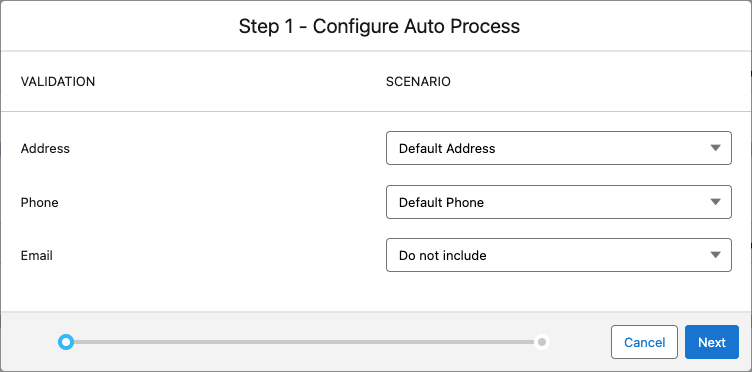
Click Next.
In the Confirmation step, review the auto process information.
If everything is correct, toggle the acknowledgement that the Auto Process job will process the records and that updating cannot be undone.

Click Start.

An extra line appears at the validation job with information about the Auto Process job. The different counters at the job now show the number of validations that are left after auto processing; you can process these manually.